Compiling and Running Swing Programs
This section explains how to compile and run a Swing application from the command line. For information on compiling and running a Swing application using NetBeans IDE, see Running Tutorial Examples in NetBeans IDE. The compilation instructions work for all Swing programs — applets, as well as applications. Here are the steps you need to follow:
- Install the latest release of the Java SE platform, if you haven't already done so.
- Create a program that uses Swing components.
- Compile the program.
- Run the program.
Install the Latest Release of the Java SE Platform
You can download the latest release of the JDK for free from http://java.sun.com/javase/downloads.Create a Program That Uses Swing Components
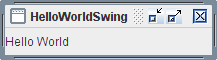
You can use a simple program we provide, called HelloWorldSwing, that brings up the GUI shown in the figure below. The program is in a single file,HelloWorldSwing.java. When you save this file, you must match the spelling and capitalization of its name exactly.Compile the Program
Your next step is to compile the program. Here's an example of compilingHelloWorldSwing.java:If you can't compile, make sure you're using the compiler in a recent release of the Java platform. Once you've updated your JDK, you should be able to use the programs in this trail without changes. Another common mistake is installing the Java Runtime Environment (JRE) and not the full Java Development Kit (JDK) needed to compile these programs. Refer to the Getting Started trail to help you solve any compiling problems you encounter. Another resource is the Troubleshooting Guide for Java™ SE 6 Desktop Technologies.javac HelloWorldSwing.javaRun the Program
After you compile the program successfully, you can run it. For example:java HelloWorldSwing